

How to Update Reactor V1.2 Firmware?
In this article, I’ll show you how to update the internal firmware of the Reactor motor driver (suitable for V1.2). The firmware is the main control code running inside the driver board.
We regularly update it based on feedback, and using the latest version will be beneficial for you as well. For the firmware update, we’ll use a USB-UART converter module, which can easily be found in many robotics & electronics stores.
These can be FTDI232, CP2102 or CH340 based converters, that any model that functions as a bridge will work. You will also need 4 line Female-Female wire to connect module and Reactor.


This micro CH340E module is my favourite.

Most common type.

Various TTL-UART converter modules, also known as UART bridges, can be used.
First, set the DIP switch on the board so that all three switches are in the up position (- – -) and after that we will make connections.
Reactor board will take 5V power from USB so no need to give voltage from outside to board. (Only mcu side will receive power).

For the firmware update we will use some bootloader host program, can be downloaded from below.
https://blog.jsumo.com/wp-content/uploads/2025/10/PSoC-Bootloader-Host-v4.4-Installer.zip
After downloading, please unzip the directory and install the bootloader sender host software.
The firmware code is also available below, please download it.
https://blog.jsumo.com/wp-content/uploads/2025/10/Reactor-V1_2_28OCT25.zip
Please unzip this after downloading, we will directly use Cyacd file (Reactor-V1_2_28OCT25.cyacd)
When you open the programmer software, click the […] program open button and choose the “Reactor-V1_2_28OCT25.cyacd”


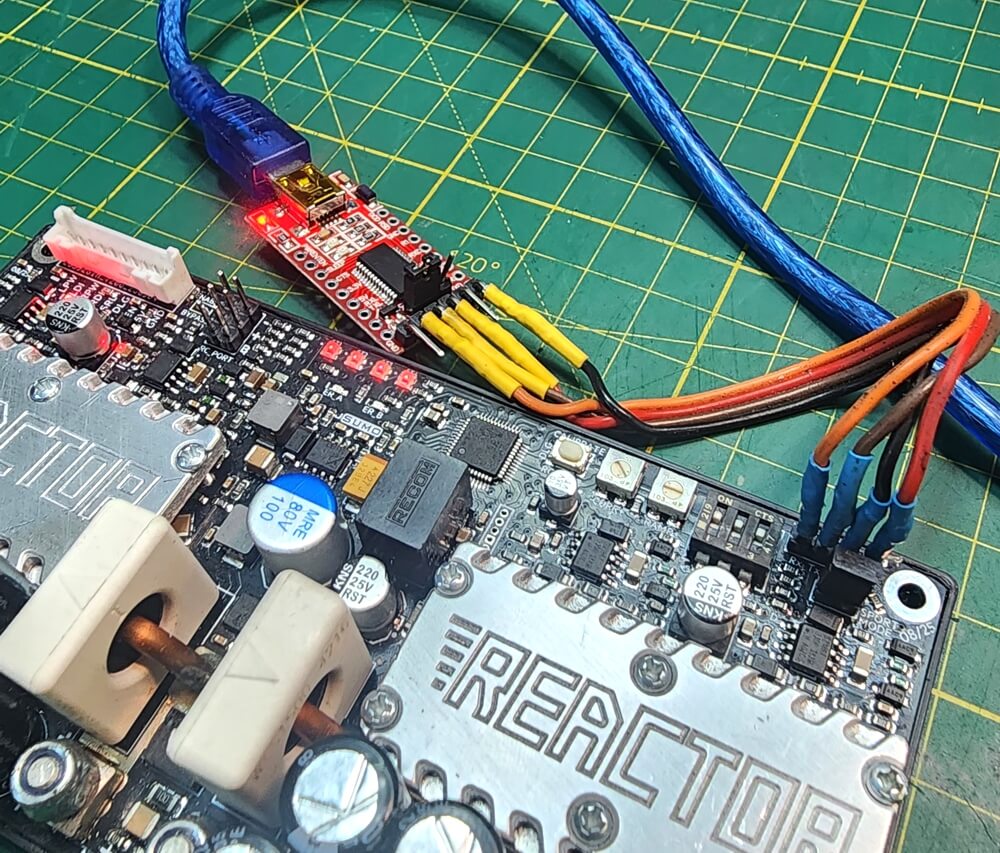
Now, we will connect the UART module with these pins shown at up.
Note: Rx, Tx information written at Reactor Board will be same pins of UART bridge (Rx to Rx, Tx to Tx).
After module and Reactor connection and making dipswitch position to all up, you may attach the USB cable. But after USB connection you will have only 5 second to push the “program button”. After 5 second system will boot to the main code and you can’t upload the firmware. So all starting process needs to be quick. If you can’t manage to make in 5 second, please retry.
Uploading firmware with default speed of 9600 bps will take 45 to 60 seconds. While uploading code you will see leds blinking at UART module and also you will see the progress bar moving forward.


In my example, the following data is written in the status section:
05:22:31 PM – Selected device: USB Serial Port (COM17) – UART
Generic Serial Port
05:22:32 PM – program Started
05:23:29 PM – program Finished Successfully
05:23:29 PM – program completed in 56495 ms.
After loading the code, you can switch the dipswitch to normal control modes.

Click the image for youtube video of upload process.